
Edit your site yourself — fast
The chat is great for big changes: add a section, change the style, rewrite the copy. But for one word, one colour or one image, editing straight on the page is far quicker. Here is how it works.
Right-click
Every element edits in place
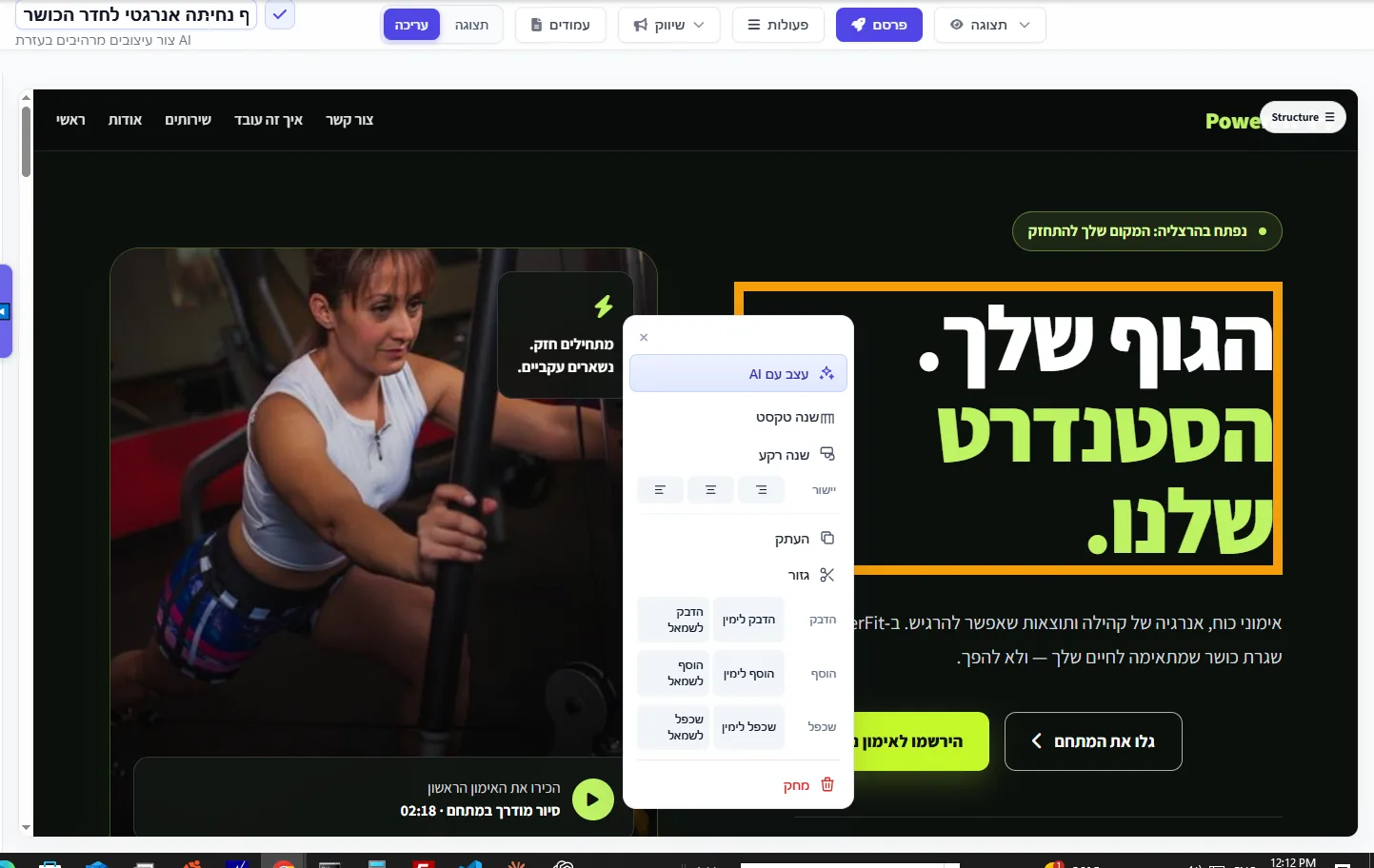
Right-click any text, button or image and a menu opens: change text, change background, align, copy, duplicate and delete. There is also “Design with AI” if you still want the AI to handle it — but scoped to that one element instead of the whole page.
Navigation
The Structure panel finds anything
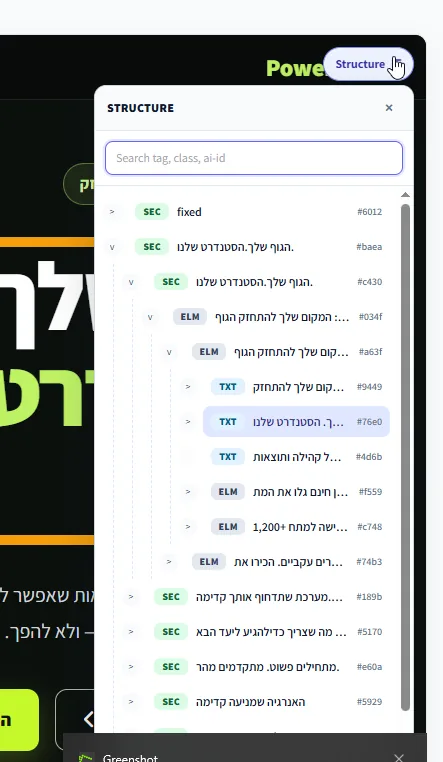
On a long page it is not always easy to click exactly the thing you want. The Structure panel shows the whole page as a tree — sections, elements and text — and lets you search by tag, class or id. Clicking a row selects that element on the page.
Images
Four ways to change an image
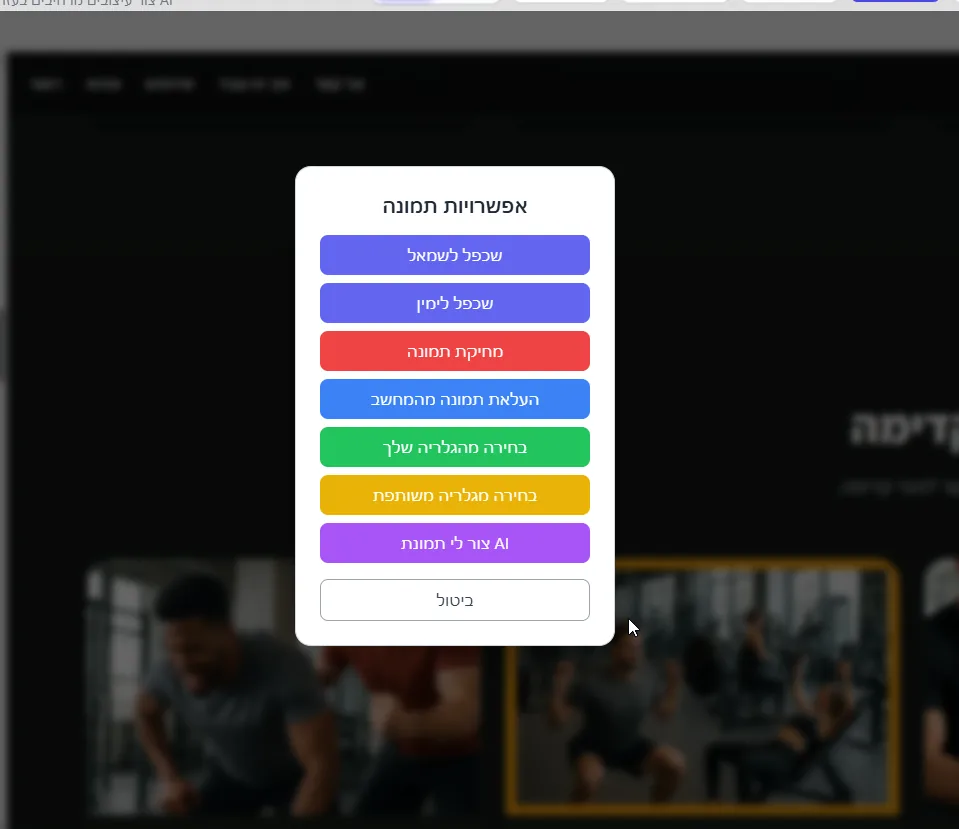
Clicking an image opens the image options. From there you can upload a file from your computer, pick from your business gallery, search the shared gallery, or ask the AI to generate a new image from a description.
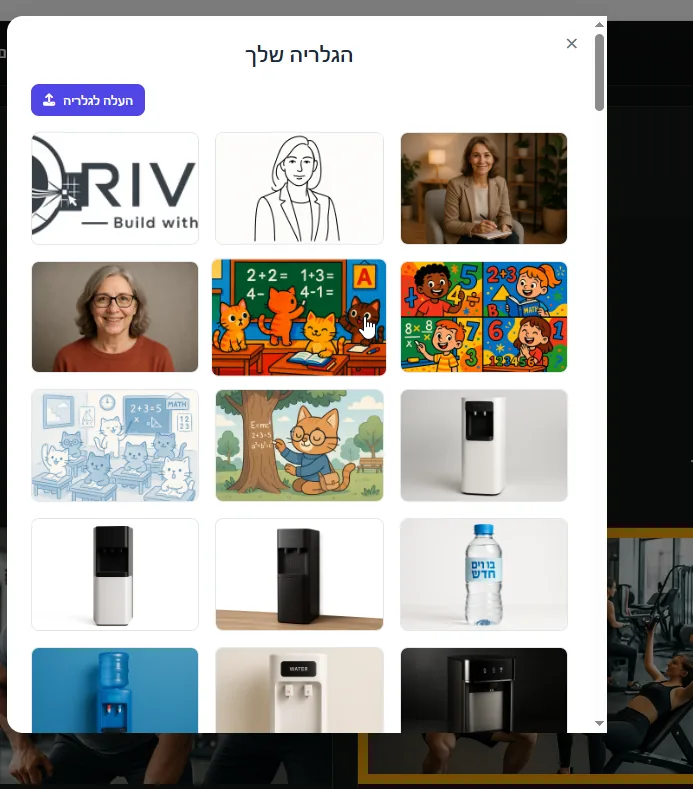
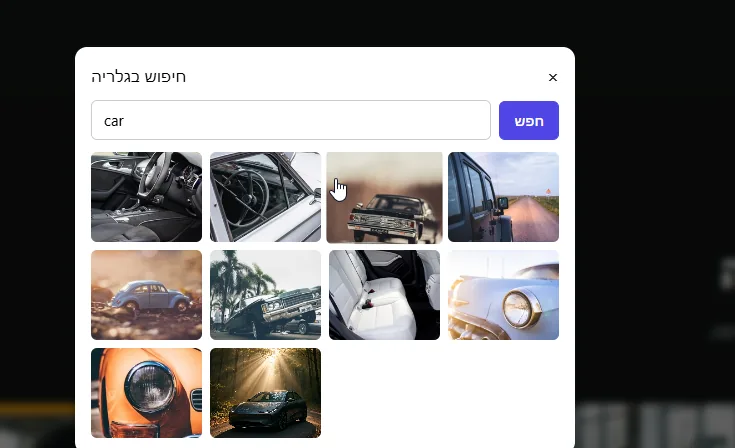
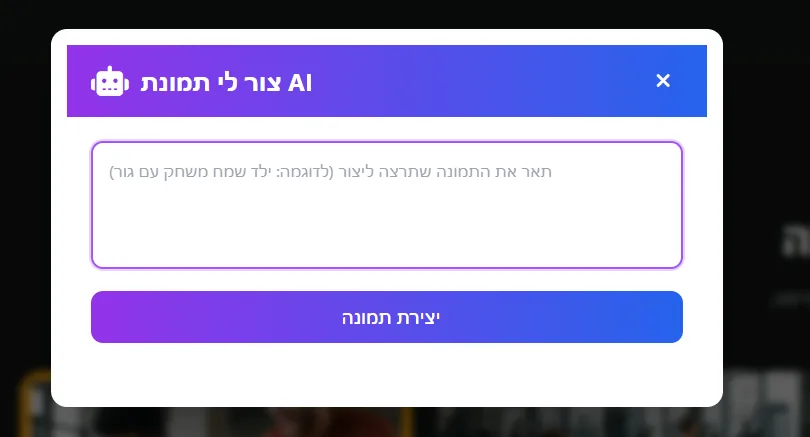
Every image you upload is kept in your business gallery, so you can reuse it on any page of any site without uploading it again.
Ready to try it?
Open your site and right-click anything you want to change.
Go to my sites